Kleki Paint: A Practical Guide to Web-Based Digital Painting
Learn how to use Kleki paint for quick browser-based digital painting. This guide covers setup, brushes, layers, blending, exporting, and practical tips for beginners.


With Kleki paint, you will create a quick digital painting from start to finish using a web-based tool. You’ll learn how to set up a canvas, choose brushes, apply layers, blend colors, and save or export your artwork. This guide covers practical tips for beginners and DIY artists at home.
What is Kleki Paint?
Kleki paint is a lightweight, browser-based digital painting tool that runs directly in your web browser. It offers a canvas area, multiple brush options, color picking, and basic effects, all without installation. This simplicity makes Kleki ideal for quick concept sketches, color explorations, and fast ideation—whether you’re a homeowner doing a DIY art project, a student practicing digital drawing, or an auto refinishing hobbyist testing color ideas for a project. Because it’s browser-based, you can jump in from any device with internet access and share a link to your canvas for feedback. Kleki emphasizes a painterly feel while keeping the interface approachable for beginners, which lowers the barrier to creative experimentation and iterative work.
In practice, Kleki shines for rapid brainstorming: sketch layouts, test color palettes, and try out composition ideas before moving to more advanced software. It’s not a full studio replacement, but it offers a fast, accessible way to capture ideas and iterate on them. By saving as PNG or sharing a live link, you can collaborate with friends or clients without complex file transfers. For homeowners exploring color concepts for rooms or DIY car accent ideas, Kleki paint provides a friendly entry point to digital exploration.
Getting Started: Setup and Interface
To begin, open Kleki in your browser by navigating to the web app. The interface centers on the canvas with a top toolbar for tools and a side panel for layers and color work. The first step is choosing a canvas size appropriate for your project; small canvases load quickly and are great for practice, while larger canvases give you more room for detail. The brush palette includes at least a few common options like pencil and brush, with adjustable size and opacity. The color picker lets you experiment with hues, tints, and saturations, which is essential for developing color sense in any painting task.
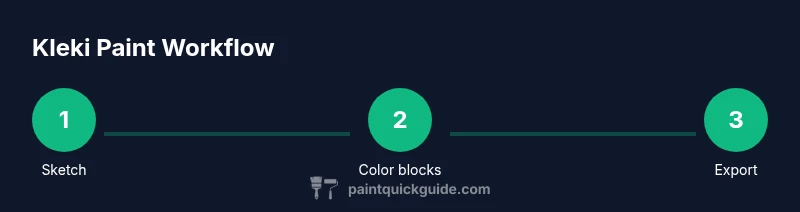
The layers system in Kleki mirrors traditional digital painting workflows. Create a new layer for sketching, another for color blocks, and additional layers for details or highlights. Layers should be ordered so that background colors sit beneath foreground elements. The eraser, fill tool, and selection features help you refine your composition without destroying underlying work. Keyboard shortcuts can speed up your workflow, but you can rely on the on-screen controls as you learn. When you’re ready to save, look for the export option to save as PNG or other formats that preserve your artwork’s quality.
If you’re working on color planning for a home decorating idea or a car refinement concept, consider starting with a neutral background and then layering color on top. Keeping a separate layer for shadows often makes adjustments easier than repainting an entire scene. For best results, practice basic command sequences and habits: frequently save, label layers clearly, and keep a copy of your initial sketch in a dedicated layer for reference.
Core Techniques: Layers, Brushes, and Blending
Understanding how layers and brushes interact is the key to getting good results in Kleki. Start with a simple base layer for your background color or tone. Add a new layer for your main shapes or subject, then another layer for details on top. Use opacity to build up color gradually; a low opacity on larger color blocks helps you blend smoothly without hard edges. Keep a separate layer for highlights and another for shadows so you can adjust lighting without disturbing the base colors. If a mistake happens, simply erase on the appropriate layer rather than repainting the entire area.
Brush choices influence texture and line quality. A pencil-like brush creates crisp outlines, while a soft brush yields gentle shading and soft edges. An airbrush can help you build color gradually on larger surfaces. Experiment with brush sizes to create variety in texture: wide strokes for backgrounds and fine lines for details. Blending in Kleki is typically achieved by layering color with varying opacity rather than a single stroke; this mimics traditional glazing techniques and allows nuanced color transitions. Color harmony—sticking to a cohesive palette—keeps the piece readable and visually appealing, which is especially helpful for quick concept art or small DIY projects.
If you’re refining a home décor sketch, consider starting with a neutral palette and adding accent colors on separate layers. For car refinishing ideas, use translucent layers to simulate translucent paints and reflections. Remember to save frequently and name layers descriptively, as this helps you recover ideas and compare different color approaches without repeating work.
Exporting and Practical Tips
Exporting your Kleki artwork is straightforward. When you’re satisfied with the composition, save your final file as a PNG for the best balance of quality and file size. If you want to preserve transparency for layered composition discussions, export with a transparent background where supported. Name your file clearly to track versions, especially if you’re testing color palettes for rooms or vehicles. In addition to export, you can share a live link to your canvas so collaborators can view or comment without permanently altering your file.
Practical tips for working with Kleki include starting with a rough composition on a low-resolution canvas to save time, then scaling up for final details if needed. Use layers to separate underlying geometry from color blocks and highlights, which makes it easier to iterate without destroying earlier work. Be mindful of device performance; on older machines, a very large canvas can cause lag, so adjust resolution accordingly. Regularly back up important sketches and keep a simple archive of iterations for future reference or client reviews.
Accessibility and Next Steps
As you gain confidence with Kleki paint, you can explore supplemental tools for color and composition studies. If you plan to translate a Kleki sketch into a more advanced project, keep your initial layers as references and recreate them in your preferred software. For color theory practice, you can use Kleki to quickly test color relationships, then translate those insights into physical paint selections for walls or furniture. Finally, consider pairing digital experiments with hands-on painting to reinforce skills and bridging the gap between concepts and real-world results.
Tools & Materials
- Computer or tablet with internet(Essential for accessing Kleki paint in a browser)
- Web browser (Chrome, Firefox, Edge, etc.)(Modern browser with canvas support)
- Mouse or graphics tablet(Optional, but helps with precision)
- Kleki Paint app open ( kleki.com )(Start a new canvas and explore brushes)
- Basic color palette(Use on-screen color picker to choose hues)
- Notepad or screenshot tool(Capture ideas and color combos for reference)
Steps
Estimated time: 45-60 minutes
- 1
Open Kleki and set up your canvas
Launch the browser-based Kleki paint tool and create a new canvas. Choose a canvas size appropriate for your project and set a neutral background to avoid glare. This step primes your workspace for a smooth workflow.
Tip: Tip: Start with a light background color to easily judge values and contrast. - 2
Select a brush and adjust size
Pick a basic brush (pencil or brush) and adjust its size and opacity. A larger brush helps block in shapes quickly, while a smaller brush adds detail. Experiment with pressure if you’re using a tablet.
Tip: Tip: Use a low opacity first to build color gradually for better blending. - 3
Sketch the composition on a separate layer
Create a new layer for the rough sketch. Sketch the main shapes and silhouettes with a light color. This keeps the final colors clean and lets you adjust composition without altering the color layer.
Tip: Tip: Rename layers clearly (e.g., 'Sketch', 'Colors', 'Shadows') for easy navigation. - 4
Block in base colors on to-color layers
Add a color layer beneath the sketch and fill in broad areas with approximate values. Use larger brushes to cover ground quickly and refine later on higher-detail layers.
Tip: Tip: Work from general to specific—base colors first, then midtones and highlights. - 5
Refine with layers, shading, and highlights
Create separate layers for shadows, midtones, and highlights. Adjust opacity to blend transitions smoothly and avoid harsh edges. Use soft brushes to soften transitions where needed.
Tip: Tip: Toggle layer visibility to compare versions and judge value relationships. - 6
Export, review, and save your work
Export the final image as PNG for quality retention. If you work collaboratively, share a live link or provide a PNG for feedback. Save a copy of the project with descriptive file names for future iterations.
Tip: Tip: Keep a version history by duplicating the project at major milestones.
Your Questions Answered
What is Kleki Paint?
Kleki paint is a lightweight, browser-based digital painting tool that lets you sketch, color, and refine artwork without installing software. It supports layers, brushes, and simple edits ideal for quick concept art and practice.
Kleki is a lightweight, browser-based painting tool for quick sketches and color experiments. It’s great for practice and idea development without software installations.
Is Kleki Paint free to use?
Yes, Kleki paint is freely accessible through a web browser with no paid subscription required for basic painting features. Some advanced integrations or features may vary by browser or device.
Kleki is free to use in your browser for basic painting and experimentation.
Can I use Kleki on mobile devices?
Kleki can be used on mobile browsers, but the experience may vary by device. Larger canvases can be resource-intensive, so smaller canvases often perform better on phones or tablets.
It works on mobile browsers, though performance varies; start with smaller canvases for smoother use.
How do I export my Kleki artwork?
To export, choose the PNG option from the export menu and save the file to your device. You can also share a live canvas link if you want feedback without exporting a file.
Export your Kleki artwork as PNG or share a live canvas link for feedback.
Does Kleki support layers?
Yes, Kleki supports multiple layers. You can create, rename, reorder, and adjust opacity to build up color, shading, and details non-destructively.
Kleki includes multi-layer support for flexible edits.
What are alternatives to Kleki?
If you’re seeking more features, consider other browser-based tools or desktop painting programs. Each tool has its own strengths for different workflows, from simple doodling to detailed digital painting.
There are several other browser and desktop painting tools with broader feature sets.
Watch Video
Quick Summary
- Kleki paints offers quick, browser-based painting for rapid ideation.
- Use layers to manage sketches, colors, and shading non-destructively.
- Experiment with brushes and opacity to achieve texture and depth.
- Export high-quality PNGs and save versions for review.