Paint vs Paint 3D: A Practical Windows App Comparison
Compare Paint and Paint 3D on Windows for 2D editing vs lightweight 3D work. Learn which tool fits your workflow, access tips, and understand export options with a balanced, data-driven analysis from PaintQuickGuide.


Paint vs Paint 3D are lightweight Windows tools designed for quick image edits and simple creative tasks. Paint emphasizes 2D drawing, cropping, and annotation, while Paint 3D adds basic 3D shapes, textures, and scene composition. For straightforward edits, Paint is typically faster and simpler; for beginners exploring 3D concepts, Paint 3D offers an entry point without complex software.
What Paint vs Paint 3D Are Really: A Quick Orientation
Paint and Paint 3D are lightweight Windows applications designed for entry-level editing and creative work. Paint targets straightforward 2D tasks like drawing, annotating, and basic image cropping, while Paint 3D expands the canvas with lightweight 3D shapes and scene-building capabilities. In the paint vs paint 3d landscape, many users ask which tool to pick for quick edits versus 3D tasks. According to PaintQuickGuide, the best choice depends on your goals, hardware, and willingness to explore new workflows. This section sets the stage for a practical, objective comparison that helps you decide which tool aligns with your projects and skill level.
Use Cases: When Quick Edits Win vs When 3D Matters
For everyday home projects or quick social media graphics, Paint shines with its simplicity, speed, and minimal learning curve. If your needs are cropping, annotating screenshots, or making simple memes, Paint offers an instant, distraction-free workflow. Paint 3D, by contrast, is better suited for light exploration of 3D shapes, textures, and simple scenes—enough to convey a basic concept in presentations or small demonstrations without diving into full-fledged 3D software. The choice hinges on whether your primary goal is 2D efficiency or introductory 3D experimentation, and on the time you’re willing to invest in learning.
From a productivity perspective, many users find Paint faster for routine edits, while Paint 3D provides a gentle on-ramp to 3D concepts that can benefit educators and hobbyists who want to illustrate depth or dimension without heavy tooling. PaintQuickGuide notes that the right tool matches the task: quick edits and annotations call for Paint; exploratory 3D work calls for Paint 3D.
Interface and Learning Curve
Both apps embrace a familiar Windows UI, but their interfaces emphasize different capabilities. Paint presents a compact, uncluttered toolbar with essential 2D tools—pencil, brush, eraser, select, crop, and text—making it straightforward for beginners. The learning curve is minimal, which reduces misclicks and speeds up initial results. Paint 3D introduces a secondary environment focused on 3D objects, textures, and scene assembly. While still approachable, users should expect a slightly steeper curve as they learn how 3D primitives, lighting, and perspective affect composition. The upside is a broader creative horizon with low barrier to entry; the trade-off is occasional navigation complexity when jumping between 2D and 3D features. For most newcomers, starting with Paint to master 2D fundamentals and then trying Paint 3D in short, guided sessions works well.
Core Features for 2D vs 3D Tasks
- Paint focuses on 2D features: canvas, selection tools, simple shapes, basic text, cropping, and color fills. It excels at rapid edits and straightforward compositions.
- Paint 3D adds lightweight 3D capabilities: 3D shapes, textures, stickers, and the ability to manipulate objects in a scene. It enables basic perspective and composition that go beyond 2D flat designs.
- Both apps save in common 2D formats, such as PNG and JPEG; Paint 3D may offer additional options depending on the Windows version. The feature set is designed to be approachable, not a replacement for dedicated graphic or 3D software.
- Keyboard shortcuts, templates, and basic effects exist in both tools, but the availability and behavior of some options can vary by Windows update. The practical takeaway is to leverage 2D speed first, then introduce 3D tasks sparingly as you gain confidence.
File Formats, Saving, and Compatibility
Both Paint and Paint 3D support standard 2D image exports, with PNG and JPEG being the most common choices for sharing or printing. When you work in Paint 3D, you may encounter additional export options tied to the 3D features, though these vary by Windows version and system configuration. If your goal is broad compatibility with colleagues or clients, choosing 2D formats from Paint for quick tasks is the safest bet. If you plan to present a simple 3D concept, saving a Paint 3D project to a supported export or sharing a 2D render can be effective, though you might need a separate tool for complex 3D workflows.
Performance, Hardware, and Responsiveness
Both tools are lightweight and designed to run on typical consumer hardware, but Paint 3D will benefit from a modestly more capable system when handling 3D assets. On low-spec machines, you may notice slower viewport updates or longer rendering when working with larger images or more complex 3D shapes. Paint remains extremely responsive for day-to-day edits, which makes it a reliable choice for fast turnarounds on simple tasks. If you are on an older computer, start with Paint and upgrade your workflow with Paint 3D only when you require a basic 3D element in your project. Regular software updates from Windows can influence performance, so keeping the OS current helps both tools run smoothly.
Collaboration, Sharing, and Cloud Considerations
For quick collaboration or sharing, both tools fit typical 2D workflows, with a straightforward path to save and send images to teammates or clients. Paint 3D’s value for collaboration tends to appear when you need to convey depth or basic 3D ideas in a presentation or classroom setting. If your team relies on cloud storage or cross-device editing, both apps integrate with standard image formats and Windows sharing features, minimizing friction. Remember that if you require robust version control or advanced project management, you’ll likely branch outside these tools to more specialized software.
Availability, Updates, and Ecosystem
Paint and Paint 3D have been part of Windows ecosystems for many versions, with updates tied to the OS release cycle. Availability can vary depending on the edition of Windows and the presence of optional features. Users should check their system features to confirm which app is installed by default and consider re-enabling or reinstalling features if needed. The ecosystem around these tools remains focused on accessibility and speed, not feature parity with professional-grade software. For hobbyists and quick learners, this pairing offers a low-risk entry into digital painting concepts.
Practical Tips for Transitioning Between Tools
- Start with a simple 2D project in Paint to build muscle memory before attempting any 3D elements.
- When moving to Paint 3D, begin with basic shapes and textures, then gradually experiment with scene composition and lighting.
- Use consistent file formats when exporting for sharing, so collaborators can view work without compatibility issues.
- Create short, goal-oriented tasks (e.g., a 2D poster, a 3D badge) to compare workflows side-by-side.
- Document your steps in a quick checklist to reproduce results, especially when transitioning from 2D to 3D tasks.
Common Pitfalls and How to Avoid Them
- Underestimating the 3D learning curve: approach 3D tasks in small increments to avoid overwhelm.
- Overreliance on built-in effects: prioritize substantive edits over fancy filters.
- Relying on limited export options: verify intended output formats early to prevent compatibility issues.
- Confusing 2D and 3D workflows: use separate projects or clearly labeled layers to keep work organized.
Quick-Start Guide: Getting Up to Speed in Minutes
- Install or confirm access to Paint for fast 2D edits. 2) Open a new canvas and try basic shapes, text, and cropping. 3) Switch to Paint 3D and add a simple 3D shape, then apply a texture. 4) Save as PNG for sharing or as a basic 2D render of a 3D scene. 5) Review the differences in toolsets and plan a small 2D-or-3D project to consolidate learning.
Decision Matrix: Quick Reference
- If you primarily edit 2D images, prefer speed, and need minimal setup, choose Paint. If you want an approachable way to explore basic 3D concepts while staying within the Windows ecosystem, choose Paint 3D. Both tools complement beginner workflows by offering a gradual path from 2D to 3D exploration.
Limitations and Future Trends
These tools are designed for entry-level use and quick tasks, not professional-grade design software. As Windows evolves, feature sets may shift, with potential improvements in 3D capabilities and export options. For users seeking more robust control, planning a transition to dedicated graphic or 3D modeling applications remains a wise long-term strategy, while keeping Paint and Paint 3D as fast, accessible options for everyday tasks.
Comparison
| Feature | Paint | Paint 3D |
|---|---|---|
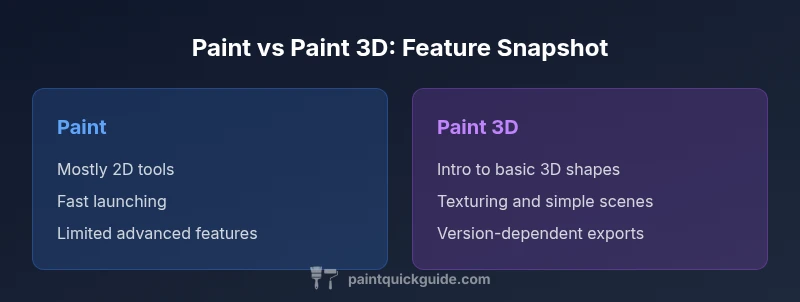
| Main purpose | 2D image editing, drawing, annotation | 2D editing plus basic 3D shapes and scene composition |
| 3D capabilities | Limited or none (2D-focused) | Introductory 3D tools for shapes/textures |
| Learning curve | Very low; familiar interface | Slightly steeper but approachable for new 3D tasks |
| Export options | Common 2D formats (PNG, JPEG) | 2D formats plus basic 3D exports (varies by version) |
| Best for | Quick 2D edits and annotations | Intro to 3D concepts and simple scenes |
Upsides
- Low system requirements and quick launch
- Straightforward tools minimize learning curve
- Paint 3D adds basic 3D features for entry-level exploration
- Fast for everyday 2D tasks
What's Bad
- Limited advanced features compared to full editors
- Paint 3D's 3D features can be inconsistent across Windows versions
- Export options may be limited or version-dependent
Paint for quick 2D edits; Paint 3D for basic 3D exploration
Paint excels at speed and simplicity for 2D work. Paint 3D provides an approachable first step into 3D concepts without requiring professional software, making it suitable for learners and light, visual demonstrations.
Your Questions Answered
What is the main difference between Paint and Paint 3D on Windows?
Paint is optimized for quick 2D editing and annotation, while Paint 3D adds lightweight 3D shapes and scene composition. The 3D tools are meant for basic exploration, not full 3D modeling. Your choice should align with whether you need 2D speed or a gentle introduction to 3D concepts.
Paint is for fast 2D edits; Paint 3D adds basic 3D shapes for simple scenes.
Can I create 3D objects with Paint?
Paint does not include true 3D modeling. Paint 3D provides basic 3D shapes and scene-building capabilities that let you illustrate depth without complex software.
Paint is 2D-only; Paint 3D handles basic 3D shapes.
Are Paint and Paint 3D free with Windows?
Both tools are associated with Windows releases and may be present by default or as optional features depending on the version. Availability can vary by edition and update cycle.
They’re tied to Windows; check your edition to confirm availability.
Can I export 2D edits from both tools?
Yes, both tools support saving edited images in common 2D formats like PNG and JPEG. Paint 3D may offer additional export options when 3D features are used, but this depends on the Windows version.
Yes for 2D, check your version for 3D export options.
Is Paint 3D still supported?
Microsoft has maintained Paint 3D through various Windows updates, but availability can vary by build. If your system lacks it, you may access similar 3D features through other Windows tools or third-party software.
Support depends on your Windows build; it may not be present in all versions.
Which tool is better for beginners?
Paint is typically the simplest choice for absolute beginners due to its minimal feature set and fast results. If you want a gentle introduction to 3D concepts, Paint 3D offers a low-barrier path to basic 3D tasks.
Paint for quick 2D tasks; Paint 3D for a gentle 3D entry.
Quick Summary
- Start with Paint for fast 2D edits
- Use Paint 3D to explore simple 3D concepts
- Check Windows version for feature availability
- Choose based on 2D vs 3D needs
- Both tools are beginner-friendly entry points