Paint 3D Download Guide: How to Get Paint 3D on Windows
A practical, beginner-friendly guide to finding, downloading, and installing Paint 3D on Windows. Learn official sources, compatibility tips, troubleshooting, and safe alternatives for a smooth setup.


Paint 3D download remains accessible for Windows users who want quick 3D editing and simple design tools. According to PaintQuickGuide, you can usually find Paint 3D in the Microsoft Store or as a built-in Windows app on compatible systems. This guide covers where to download, system requirements, and safe installation steps.
What Paint 3D is and why it matters for DIYers
Paint 3D is a lightweight, beginner-friendly graphic editor built into many Windows environments that lets you create and edit 2D scenes alongside simple 3D objects. Its user-friendly interface includes basic sculpting tools, textures, stickers, and export options that are suitable for quick project visualization. The PaintQuickGuide team notes that Paint 3D remains a practical starting point for homeowners and hobbyists who want to explore 3D concepts without investing in heavy software. Many DIY readers use it to visualize room ideas, furniture accents, or small decor projects before committing to a finish. The practical advantage is speed: you can sketch concepts in minutes, test color ideas, and save work locally. In this article, you’ll learn where to download, how to install safely, and best practices to ensure a smooth setup.
PaintQuickGuide's guidance emphasizes safety and official sources, which helps keep downloads clean and reliable.
Tools & Materials
- Windows 10 or Windows 11 device(A device with access to the Microsoft Store and built-in apps)
- Microsoft account(Needed to sign into the Microsoft Store and install apps)
- Stable internet connection(Recommended for downloading and updates; wired connection preferred)
- Sufficient storage space(Ensure enough disk space for the installer and the app data)
- Optional: Backup of important files(Good practice before installing new software, especially on a primary device)
Steps
Estimated time: 20-30 minutes
- 1
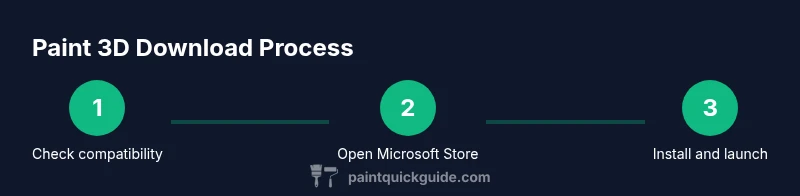
Verify OS compatibility
Confirm your device runs Windows 10 or Windows 11 and has access to the Microsoft Store. Check for pending OS updates, as these can affect app compatibility. If you’re on a significantly older build, Paint 3D may not be available.
Tip: If you’re unsure about your version, open Settings > System > About to confirm edition and build number. - 2
Open Microsoft Store
Launch the Microsoft Store app from the Start menu or taskbar. Sign in with your Microsoft account if prompted to access the full catalog.
Tip: Having your account signed in speeds up installation and future updates. - 3
Search for Paint 3D
In the Store’s search bar, type 'Paint 3D' and press Enter. Look for the official Microsoft listing to avoid third-party imitators.
Tip: Verify the publisher is Microsoft or a trusted source before downloading. - 4
Install or Get
Click Get or Install to begin the download. Monitor progress in the Library or Downloads area, then wait until the process completes.
Tip: A stable internet connection reduces retry attempts and partial installs. - 5
Launch and sign in if needed
Open Paint 3D from the Start menu. If prompted, sign in with your Microsoft account and allow required permissions.
Tip: Create a desktop shortcut for quick access after first launch. - 6
Check for updates
After first launch, check for available updates in the app’s settings to ensure you have the latest features and bug fixes.
Tip: Enable automatic updates to keep the app secure and compatible. - 7
Run a quick test project
Create a simple 2D image or a basic 3D shape to confirm core tools work as expected.
Tip: Experiment with stickers and textures to learn how each asset behaves. - 8
If unavailable, consider alternatives
If Paint 3D isn’t listed in your Store, consider Windows 3D Builder or legacy Paint’s 3D-capable features, or evaluate other lightweight editors.
Tip: Check your OS region and build; availability can vary by region and edition.
Your Questions Answered
Is Paint 3D still available for download?
Paint 3D is typically found in the Microsoft Store on supported Windows versions. If it isn’t visible, it may not be offered in your region or on your current OS build. In that case, explore alternatives like 3D Builder or the classic Paint app’s basic features.
You can usually download Paint 3D from the Microsoft Store if your Windows version supports it. If you don’t see the app, try a safer alternative like Windows 3D Builder.
Can I download Paint 3D on macOS or Linux?
There is no official Paint 3D for macOS or Linux. Windows users can access it through the Microsoft Store, but Mac or Linux users would need virtualization or alternative software.
There isn’t an official Paint 3D version for Mac or Linux. Use Windows or virtualization, or pick another lightweight editor.
What are common issues when downloading Paint 3D?
Common issues include connectivity problems, sign-in prompts, or regional availability. Troubleshooting steps include signing into the Microsoft Store, ensuring a stable connection, and checking for OS updates.
If downloads fail, try signing into the Store again and ensure your internet connection is stable. Update Windows if needed.
Is Paint 3D suitable for basic 3D tasks?
Yes, Paint 3D covers basic 3D shapes and simple textures, suitable for quick mockups. For advanced modeling, consider tools like Blender or 3D Builder.
Paint 3D is good for simple 3D tasks, but for complex work, look at other tools.
What should I do if Paint 3D isn’t available in my Store?
Check regional availability, try a different Windows edition, or use a safe alternative like 3D Builder or Paint alternatives. You can also keep an eye on future Windows updates for changes.
If Paint 3D isn’t available in your Store, try 3D Builder or another light editor until it becomes accessible.
Watch Video
Quick Summary
- Download Paint 3D only from official sources.
- Verify OS compatibility before installing.
- If unavailable, use safe alternatives and built-in features.
- Keep software up to date for best performance.