Paint 3D Online: A Step-by-Step Guide
Learn to paint 3D models in your browser with browser-based tools. This guide covers platform picks, workflow, tips, and export options for DIYers and pros.


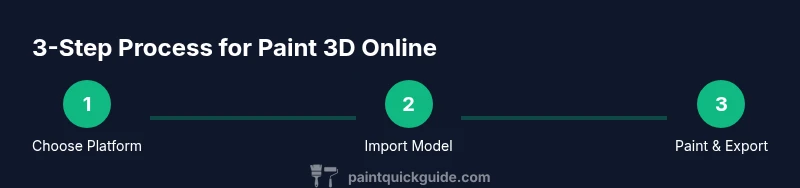
With paint 3d online, you can color and texture a 3D model directly in your browser, test finishes, and share results without installing software. This quick answer shows you how to pick a platform, import a model, paint surfaces, and export textures. Use a modern computer, an up-to-date browser, and a reliable internet connection. According to PaintQuickGuide, these tools empower practical, mess-free experimentation.
What painting 3d online means for DIY painters
For DIY enthusiasts, paint 3d online means you can color and texture a 3D model entirely in a web browser. This approach combines artistic intuition with digital precision, letting you visualize finishes, test color schemes, and compare textures without buying paint or setting up a full studio. The PaintQuickGuide team notes that such browser-based workflows reduce waste and accelerate decision-making by showing exactly how a finish will look on complex shapes. In practice, you start with a simple model, choose surfaces to paint, and experiment with materials in real time. The key is to treat the digital result as a planning tool that informs physical work later, not a final product in isolation.
Platforms and tools for paint 3d online
Numerous browser-based platforms offer texture painting, color projection, and material libraries. Some platforms focus on quick visual previews, while others provide advanced UV mapping and layer management. When choosing a platform, consider: browser compatibility, export formats, performance on your hardware, and whether you need collaborative features. Look for apps that support GLTF/GLB textures, image textures, and light maps. Although the tools vary, most share a core workflow: import a model, choose surfaces to paint, apply color or texture, adjust lighting, and save or export textures for use in other software.
Step-by-step workflow overview (non-technical)
Approaching a paint 3d online project follows a consistent sequence. Begin by loading your model and selecting the surfaces you want to paint. Apply a base color or texture to establish the overall feel, then layer details such as roughness, specular highlights, and microtextures. Use lighting presets to see how shadows interact with your materials, and periodically rotate the model to catch issues from all angles. Finally, save a copy of your textures and, if supported, export a 3D texture atlas for use in your favorite 3D tool.
Color management and texture techniques in online painting
Color fidelity is crucial when painting in 3D space online. Most apps offer color spaces like sRGB and linear, and some expose gamma controls. When painting, work with neutral lighting first, then introduce colored lighting to test tint and mood. Textures can be painted directly or generated procedurally; many tools let you paint on UV islands, while others apply materials to entire object. For realism, layer multiple textures—base color, roughness, normal maps—and keep texture sizes optimized to balance detail and performance. Remember to save different versions to compare approaches later.
Real-world translation: from digital to physical projects
A digital paint pass informs physical work by indicating primer choices, surface prep, and color recipes. For home painting, this means you can test wall colors on architectural models, then reproduce the look with paint swatches. For auto refinishing, online painting methods help you visualize color transitions and metallics before you mix paints. Treat the digital model as a prototype; once you’re happy with the result, you can transfer color schemes to real surfaces with confidence, reducing over-application and waste.
Performance tips and browser considerations
To get the most from paint 3d online, ensure your hardware and browser support hardware acceleration. Enabling GPU rendering helps with large textures and real-time lighting. Close unnecessary tabs to free memory, and keep your browser updated to the latest version for security and performance improvements. If you run into lag, switch to a lighter texture set or zoom to a lower resolution temporarily. Save work frequently to avoid data loss in case of a crash or network drop.
Common mistakes to avoid and how to fix them
Avoid painting at extremely high resolutions on weak devices—performance will suffer and the result may be unusable in real-time. Don’t rely on auto-generated textures without checking seams and tiling; always test textures on the actual model. Keep a consistent naming system for layers and textures so you can revert changes quickly. Finally, remember that browser-based painting is a planning tool; always verify critical decisions on paper or with real-world tests before committing to a finish.
Export, sharing, and collaboration options
Most paint 3d online tools offer texture export options, prepped maps, and sharing links. Export textures as PNG or JPG images, or as a texture atlas if supported, so you can import into your 3D workflow. Some platforms enable live collaboration, allowing multiple users to paint or annotate a model simultaneously. When sharing, provide version history and notes to help teammates understand design intent.
Tools & Materials
- Modern computer with GPU acceleration(Quad-core CPU or better; dedicated GPU recommended)
- Up-to-date web browser(Chrome/Edge/Firefox; enable hardware acceleration)
- Stable internet connection(Broadband preferred; 25 Mbps+ recommended)
- Access to a 3D model or sample scene(Supported formats: GLTF/GLB, OBJ, FBX)
- Account on preferred paint 3d online platform(Sign-up optional on some platforms; sign-in improves features)
- Headphones or speakers (optional)(For tutorials or collaboration calls)
- Reference images or color swatches (optional)(Helps match real-world colors)
Steps
Estimated time: 60-120 minutes
- 1
Prepare project and import assets
Open your browser-based paint tool, create a new project, and import your 3D model or start with a built-in sample. Verify model scale and orientation so that painted surfaces align with real-world expectations. This step sets the foundation for accurate color decisions.
Tip: Rename surfaces and keep a simple, consistent naming scheme. - 2
Set base materials and surface selection
Select the surfaces you want to paint and assign a neutral base material. This helps you see true color without interference from lighting or texture overlays. If the model has multiple UV islands, choose one by one to avoid misapplied textures.
Tip: Use a non-destructive approach by creating a base layer first. - 3
Apply base colors and primary textures
Block in the main colors and apply core textures to establish overall mood. Use 2–3 broad tones before adding detail textures, ensuring a cohesive look across all surfaces. Frequently rotate the model to catch inconsistencies at different angles.
Tip: Check seams where textures meet to prevent visible gaps. - 4
Add highlights, shadows, and lighting
Introduce lighting presets to simulate real-world conditions. Adjust highlight intensities and shadow softness to create depth. This step helps you understand how materials behave under different light sources.
Tip: Test at multiple light angles to avoid flat results. - 5
Detail with decals and micro-textures
Paint fine details, add decals, and layer micro-textures such as grain or speckle. Keep texture resolution balanced to avoid bloated file sizes while preserving detail where it matters most.
Tip: Group related textures to simplify future edits. - 6
Refine color accuracy and maps
Fine-tune color accuracy by comparing with reference colors and adjusting gamma. Add normal or roughness maps if supported to enhance realism. Save multiple versions for A/B testing of finishes.
Tip: Label each version clearly for easy comparison. - 7
Preview from multiple angles and adjust
Use camera controls to inspect the model from all sides, ensuring no paint issues are hidden from certain viewpoints. Apply final tweaks to surfaces and textures before exporting.
Tip: Enable wireframe mode to verify geometry integrity. - 8
Export textures and share your work
Export texture maps or a texture atlas if supported, and save a project snapshot for version history. Share links with teammates or clients for feedback and collaboration.
Tip: Keep a backup copy in a separate location.
Your Questions Answered
What is paint 3d online?
Paint 3d online refers to browser-based tools that let you color, texture, and render 3D models directly in a web browser. These platforms provide a visual workflow for planning finishes before any physical work, making it easier to experiment and share results.
Paint 3d online lets you color and texture 3D models in your browser, so you can plan finishes before you paint in real life.
Can I use mobile devices for paint 3d online?
Some platforms offer mobile-access, but performance and feature parity vary. For best results, use a desktop or laptop with a capable GPU and a stable connection.
Some platforms work on mobile, but desktop is usually better for full features and performance.
Is there a free version, and what features does it include?
Many platforms provide a free tier with essential painting tools and limited exports. Premium plans unlock advanced textures, higher resolutions, and collaboration features.
There are free tiers, but advanced features come with paid plans.
What file formats are supported for import/export?
Common formats include GLTF/GLB, OBJ, and FBX for imports; PNG or JPG textures are typical exports. Check each platform's specific options.
Look for GLTF/GLB or OBJ for imports, and PNG or JPG for exports.
How long does it take to learn the basics?
Most users grasp the basics within a few hours of practice, with advanced techniques improving over days of consistent use.
Basics can be learned in a few hours; mastery takes longer with regular practice.
Can I collaborate with others on a project?
Yes, several platforms support real-time collaboration, comments, and versioned sharing, which helps teams review and iterate together.
Many tools let multiple people work on a model at once and leave notes.
Watch Video
Quick Summary
- Paint 3d online enables browser-based 3D painting and texture work.
- Choose platforms that balance performance with export options.
- Plan your workflow: base colors, textures, lighting, then details.
- Use UV-aware painting for clean texture seams.
- Regularly export and back up your work.