How to Install Paint in Windows 10: A Practical Guide
Learn how to install Paint on Windows 10, including MS Paint via Optional Features, Paint 3D, and Paint.NET. Step-by-step setup, tips, and troubleshooting for a smooth experience.


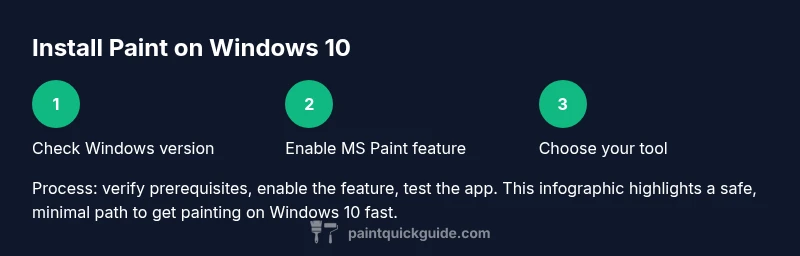
By the end of this guide you will have Microsoft Paint or a suitable painting program installed on Windows 10. You’ll learn how to enable the legacy MS Paint feature, access built‑in Paint 3D, and substitute Paint.NET if you want more tools. Start with a quick check of your Windows version and an active internet connection.
Why you may want to install Paint on Windows 10
According to PaintQuickGuide, Windows 10 users have several native and third‑party options to fulfill basic painting needs, from the classic MS Paint to Paint 3D and Paint.NET. Whether you’re annotating screenshots, editing photos for a home project, or creating simple artwork for a DIY blog, having a reliable painting tool handy saves time and avoids extra software clutter. In this section we explore why installing paint software on Windows 10 makes sense, how to pick the right tool for your workflow, and what to expect from each option. The goal is practical guidance that helps homeowners and hobbyists move quickly from launch to first edit, with safety and reliability built into the setup. PaintQuickGuide’s team emphasizes starting with built‑in solutions to keep your system lean and secure, then expanding only when your needs outgrow the default apps.
Choosing between MS Paint, Paint 3D, and Paint.NET
MS Paint remains the simplest option for quick sketches and annotations. It starts fast, uses minimal resources, and covers many common tasks like cropping, resizing, and basic drawing. Paint 3D introduces a modern interface and some 3D features, which can be handy for explaining concepts visually or transforming flat images. Paint.NET offers more advanced editing tools, layers, and effects, which are useful for small projects or hobby work where you want more control. Your choice depends on how often you edit, whether you need layers, and whether you prefer a tool already bundled with Windows or a lightweight download. PaintQuickGuide’s experience suggests most daily tasks can be completed with MS Paint or Paint 3D, with Paint.NET reserved for users who want richer features. In the next sections we’ll walk through how to enable and install each option on Windows 10.
Step 1: Check your Windows 10 version and prerequisites
Before starting, verify your Windows 10 version and ensure you have reliable internet access. Open Settings, go to System, and select About to view your edition and build. If you plan to enable MS Paint through Optional Features, you’ll need administrative rights. Make sure your device has enough disk space for the feature and any additional apps you intend to install, and consider temporarily disabling nonessential background tasks to speed up the process. If you’re planning to install Paint.NET, have your preferred browser ready to download the installer from the official site. A quick check now saves time later and reduces the chance of partial installations or missing components.
Step 2: Enable MS Paint via Optional Features
MS Paint is available on Windows 10 as an Optional Feature. To add it, go to Settings > Apps > Optional features > Add a feature. Scroll to MS Paint, select Install, and wait for the feature to complete. After installation, you’ll find Paint in the Start menu and can pin it for fast access. If you don’t see MS Paint in the list, make sure Windows is fully up to date and try again. This method preserves system integrity, since you’re turning on a built‑in component rather than downloading an external program. If you’re using a managed computer, check with your IT department before changing features.
Step 3: Access Paint 3D and use its basics
Paint 3D ships with Windows 10 and is designed for quick edits with a modern interface. To launch, search for Paint 3D in the Start menu and open the app. You can create new projects or import existing images, then use simple tools like brushes, stickers, and text. The app includes tutorials and tips that help you get familiar with the 3D objects and canvas environment. If you prefer simplicity, you can keep using the classic Paint functionality alongside Paint 3D. Remember to save your work in a widely supported format (PNG or JPEG) and consider exporting 3D objects if your project requires sharing in three dimensions. Paint 3D is a good transitional tool for users who want a smoother, more visual editing experience without installing additional software.
Step 4: Install Paint.NET for advanced features
Paint.NET is a free third‑party image editor offering layers, filters, and more precise editing capabilities. To install it, open a web browser and go to the official site (getpaint.net). Download the installer, run it, and follow the on‑screen prompts. During installation you can choose components and language preferences. After installation, launch Paint.NET and set your default image formats if needed, so your workflow stays consistent. Because Paint.NET is not part of Windows, it may require .NET updates or a quick restart, so be prepared to reboot if the application prompts you. Paint.NET is a solid choice if you frequently edit photos and want more control than the built‑in options provide.
Troubleshooting common issues
Sometimes MS Paint or Paint.NET may not install correctly on Windows 10. If an optional feature fails to install, try these steps: run Windows Update, clear the Microsoft Store cache, and restart your computer. Ensure you have administrative rights and that your system isn’t restricted by group policy in a managed environment. If Paint 3D won’t launch, check that your graphics driver is up to date and that Windows Defender isn’t blocking the app. For Paint.NET, verify that .NET Framework requirements are met and run the installer as Administrator. Keeping your drivers current and maintaining up-to-date Windows components helps prevent most installation hiccups.
Accessibility and performance considerations
Painting tools should be accessible to everyone. If you have limited vision or mobility, use high‑contrast themes and larger UI text settings to improve readability. You can customize keyboard shortcuts and toolbar layouts in Paint.NET and Paint 3D to speed your workflow. For machines with modest specs, the built‑in apps provide a reliable baseline and keep resource usage low while editing simple images. If you frequently work with large files, ensure there is sufficient RAM and disk space, and consider disabling fancy effects in Paint.NET to improve performance. Always save your work frequently and back up before major edits.
Choosing the right tool for your needs and next steps
With the options covered, pick the tool that aligns with your typical tasks. For quick annotations and light edits, MS Paint or Paint 3D is often enough. If you need layering, precise adjustments, or more advanced effects, Paint.NET is worth the download. Regardless of your choice, adding a reliable painting tool to Windows 10 can streamline daily tasks, from documenting home improvement projects to sharing designs with friends and family. The next steps are simple: decide which tool fits your workflow, install it, and set your default image format to minimize friction in future projects.
Tools & Materials
- Windows 10 PC with internet access(Ensure Windows is up to date and you have admin rights for feature installs.)
- Administrative privileges(Needed to enable MS Paint via Optional Features.)
- Settings app access(Used to add or manage optional features.)
- Paint.NET installer (official site)(Optional if you choose advanced editing.)
- Paint 3D installed from Windows features(Built-in alternative for quick edits.)
- Web browser(Needed to download installers from official sources.)
- Microsoft account (optional)(May be needed for Microsoft Store downloads.)
Steps
Estimated time: 40-90 minutes
- 1
Verify Windows version and prerequisites
Open Settings > System > About to confirm edition and build. Ensure you have internet access and admin rights before enabling new features. Check disk space and close nonessential apps to streamline installations.
Tip: If you’re on a managed PC, verify with IT before making feature changes. - 2
Enable MS Paint via Optional Features
Navigate to Settings > Apps > Optional features > Add a feature. Find MS Paint, click Install, and wait for the process to finish. Launch from the Start menu after installation.
Tip: If MS Paint isn’t listed, update Windows first and retry. - 3
Open and test MS Paint
Launch MS Paint, create a new file, and perform basic edits (draw, text, crop). Save a sample image to confirm the app works as expected.
Tip: Pin Paint to Start for quick access. - 4
Explore Paint 3D basics
Search for Paint 3D in Start, open the app, and try a simple edit (brush, text, sticker). Compare its simplicity to classic Paint.
Tip: Save in PNG or JPEG; consider exporting 3D objects if needed. - 5
Install Paint.NET for advanced editing
Visit the official site, download the installer, run it, and follow prompts. Configure preferred formats and check for any required .NET updates.
Tip: Download only from the official site to avoid malware. - 6
Test and finalize your setup
Open each installed app, create a quick project, and verify file exports. Set a default image format if you plan to use a specific workflow.
Tip: Keep backups of original images as you test features.
Your Questions Answered
Is MS Paint still available on Windows 10?
Yes. You can install MS Paint on Windows 10 by adding it as an Optional Feature in Settings. If it isn’t visible, ensure Windows is updated and repeat the process.
MS Paint can be reinstalled on Windows 10 by enabling it as an optional feature; update Windows if you don’t see it.
What’s the best option for simple edits on Windows 10?
For simple edits, MS Paint or Paint 3D typically suffices. Use Paint.NET if you need layers and more advanced effects.
For quick edits, try MS Paint or Paint 3D; for more control, go with Paint.NET.
Do I need admin rights to install Paint on Windows 10?
Yes. Installing optional features like MS Paint or external apps usually requires administrative privileges.
Yes, you’ll generally need admin rights to install Paint or enable features.
Can I install Paint.NET without an internet connection?
No. Download Paint.NET from the official site to install, which requires an internet connection for the initial download and updates.
Paint.NET requires an internet connection to download and install.
Are there safety concerns with third‑party painting programs?
Only install from official sources and keep antivirus enabled. Avoid untrusted download sites to minimize risk.
Stick to official sources and keep security software active when installing third‑party tools.
Watch Video
Quick Summary
- Assess needs: basic edits vs. advanced features.
- Enable MS Paint via Optional Features for a built‑in option.
- Paint 3D offers quick, modern editing; Paint.NET adds depth.
- Always download from official sources and back up work.