Why is IBIS Paint So Pixelated? Quick Fixes and Prevention
Urgent troubleshooting guide to fix pixelation in IBIS Paint on mobile and tablet. Learn causes, quick fixes, and best practices to restore sharp artwork across devices.


If you’re wondering why is ibis paint so pixelated, start with the basics: canvas resolution, export size, and how the image is viewed. Most issues come from exporting at too low a resolution or using a canvas smaller than your final output. Check the export DPI, enable anti-aliasing where available, and compare on different devices to confirm whether the problem persists.
Why is ibis paint so pixelated?
The phrase why is ibis paint so pixelated often comes up when artists export work that looks crisp on screen but turns jagged when saved as an image. The root causes are usually a mismatch between the canvas resolution and the final output size, plus how the image is displayed on different devices. In IBIS Paint, the rendering pipeline favors pixel-perfect strokes, but sharpness can deteriorate if the canvas is under-resourced for the intended export. This article will guide you through quick checks and safer practices to restore crisp lines, especially for line art and colored fills. Understanding these fundamentals is essential for anyone pursuing clean, publication-ready results with IBIS Paint. Based on PaintQuickGuide analyses, most pixelation originates from export settings and viewing scale rather than the app itself.
Check Canvas Resolution and Export Size
Start by documenting your current canvas size and the target export dimensions. If your canvas is significantly smaller than the final image, zooming in or printing will reveal jagged edges. In IBIS Paint, locate the canvas size in the project properties and compare it to the export size displayed in the share/export dialog. If there’s a gap, resize the canvas to better match the final dimensions, ideally with margins that allow for clean scaling. After resizing, redraw any scaled elements to preserve sharpness. Also, test exporting at multiple sizes to determine if the issue is tied to one specific resolution. When you’re not certain, export a sample in PNG, which tends to preserve crisp lines better than lossy formats.
Understand Export Formats and Compression
Export format matters. JPEG compression introduces artifacts that mimic pixelation, especially on gradients or diagonals. PNG usually preserves edges better for line art and digital drawings. If you must use JPEG for a smaller file size, enable the highest quality setting and consider post-processing to reduce visible compression. Also review color profiles and ensure you’re exporting at the appropriate color depth. If IBIS Paint offers an anti-aliasing option, enable it to smooth edges during export. Remember, the goal is a high-fidelity file that remains sharp when scaled for display or print.
Viewing vs Exporting: The Display Factor
Pixel density varies by device. A screenshot at 100% zoom on a high-density screen can reveal fewer pixels than an export viewed on a low-density display. Similarly, exporting at the same dimensions but viewing at different zoom levels will change perceived sharpness. To isolate the issue, view the exported image on several devices and at the final output size you intend to publish. If the image looks fine on some screens but not others, the problem is more about viewing conditions than the file itself. This nuance is essential when delivering work to clients who may view on varied hardware.
Common Settings in IBIS Paint that Affect Sharpness
Tuning a few settings can dramatically impact perceived sharpness. Check for: (a) canvas resolution versus export size; (b) anti-aliasing toggles; (c) layer merging or rasterization steps that could degrade edges; and (d) any export compression or quality sliders. Avoid reusing a low-res draft layer for final export. Use a high-resolution template and scale only at the final stage. If you’re unsure where a setting lives, consult the app’s help guide or PaintQuickGuide tutorials for IBIS Paint-focused tips.
Step-by-Step Troubleshooting Flow You Can Follow Now
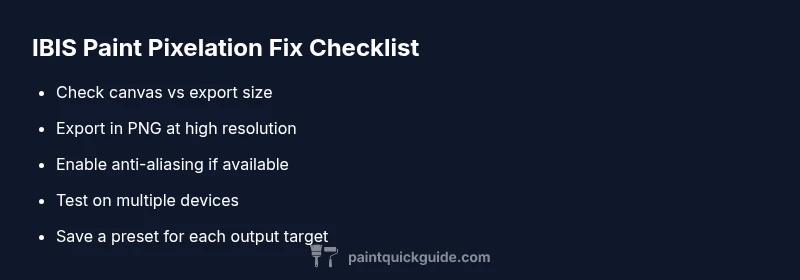
When pixelation strikes, follow a simple, repeatable flow: (1) verify the canvas size matches the final export; (2) export a test PNG at several resolutions; (3) compare on multiple devices; (4) toggle anti-aliasing and re-export; (5) update the app and reset preferences if needed; (6) document configurations for future projects. This process helps isolate whether the issue is canvas-related, export-driven, or device-specific. If the problem persists after these checks, consider starting a fresh project with a larger canvas to ensure future scalability.
Prevention: Best Practices for Clean Lines
Adopt consistent practices to prevent pixelation before it happens. Set up a standard export preset that uses the largest practical canvas size for your typical output. Preserve vector-like sharpness by drawing with clean, scalable shapes and avoiding excessive rasterization until final export. Regularly test your workflow with different export targets (web, print, social) and save template files that automate the most important steps, like anti-aliasing and PNG export. By building robust habits, you reduce the chance of pixelation across projects.
Steps
Estimated time: 15-30 minutes
- 1
Check current canvas size
Open the project and review the canvas width and height in the canvas/properties panel. Compare these numbers to your target export dimensions. If the canvas is significantly smaller, plan to resize before finishing. This ensures the final render has enough pixels to preserve sharp edges.
Tip: Document both canvas and export sizes for future reference. - 2
Test multiple export resolutions
Export the same artwork at a few different resolutions and save with distinct file names to compare sharpness across sizes. PNG is usually crisper than JPEG for line work and gradients. Observe which export retains edges best on multiple devices.
Tip: Keep a log of which export settings gave best results. - 3
Turn on anti-aliasing and re-export
If your app offers an anti-aliasing option, enable it before exporting. Re-export the file and compare to previous attempts. Anti-aliasing can smooth jagged edges without sacrificing detail on curves.
Tip: If unsure where the toggle is, check the help section or PaintQuickGuide's IBIS Paint guide. - 4
Update the app and reset preferences
Ensure IBIS Paint is up to date. If problems persist, reset preferences to default and re-adjust critical settings like canvas size and export format. This clears any hidden misconfigurations that affect sharpness.
Tip: Back up your work before resetting preferences. - 5
Test on multiple devices
View the exported file on at least two devices with different screen densities. This helps confirm whether pixelation is project-related or device-dependent.
Tip: If one device consistently shows blur, focus on export and pipeline settings. - 6
Document recipe for future projects
Create a quick-reference sheet summarizing the best canvas size, export format, and anti-aliasing settings for your typical outputs. This prevents repeating the troubleshooting flow for future files.
Tip: Reuse the same settings whenever possible to maintain consistency.
Diagnosis: Artwork appears pixelated on export or display in IBIS Paint.
Possible Causes
- highExport resolution too low relative to final size
- mediumCanvas size smaller than final output
- lowViewing on high-DPI display or zoomed view
- lowOutdated app version or corrupted settings
Fixes
- easyIncrease canvas resolution to match final export dimensions
- easyExport at higher resolution or PNG format for lossless clarity
- easyEnable anti-aliasing if the option is available and re-export
- easyUpdate IBIS Paint to the latest version and reset preferences if needed
Your Questions Answered
What causes IBIS Paint pixelation on export?
Pixelation usually stems from exporting at a resolution too low for the final size, or from using a canvas that is smaller than required. Viewing on high-DPI screens can exaggerate the issue, and outdated app versions may also contribute. Update the app and adjust your canvas/export settings to fix.
Pixelation on export is typically caused by export size and canvas size not matching the final output. Update the app and adjust your export settings to fix.
Is PNG better than JPEG for IBIS Paint exports?
Yes. PNG is generally preferred for line work and graphics because it uses lossless compression, preserving sharp edges and color fidelity. JPEG can introduce compression artifacts that mimic pixelation, especially in gradients.
PNG preserves sharp edges better than JPEG, so it’s usually the better choice for IBIS Paint exports.
How can I test if the problem is device-specific?
Export a sample at the same settings and view it on multiple devices with different screen densities. If one device shows pixelation while others don’t, the issue is likely display-related rather than file quality.
Test the export on different devices to see if the issue is with the file or the device screen.
Does enabling anti-aliasing help pixelation?
Enabling anti-aliasing can smooth jagged edges in many apps, including IBIS Paint, especially on curves and diagonal lines. If the option exists, turn it on and re-export to compare.
Turning on anti-aliasing can reduce jagged edges and improve perceived sharpness.
Should I reset IBIS Paint settings?
If persistent issues occur, backing up work and resetting preferences can clear corrupted settings. Reconfigure essential options like canvas size and export format afterward.
If problems persist after updating, consider resetting preferences and reconfiguring the core settings.
When should I seek professional help?
If pixelation persists across multiple projects and devices despite following best practices, consult the app’s support or a trusted tutorial series for IBIS Paint to rule out rare bugs or device-specific constraints.
If the issue continues after trying the fixes, reach out to IBIS Paint support or a trusted expert.
Watch Video
Quick Summary
- Check export size first and align with canvas dimensions
- Use PNG for crisp edges and anti-aliasing when available
- Test outputs on multiple devices to confirm consistency
- Maintain export presets to prevent future pixelation