How to Use ibis Paint: A Practical Guide for Beginners
Learn how to use ibis Paint with a clear, practical workflow. This guide covers setup, brushes, layers, color control, and exporting—empowering beginners and hobbyists to create quality digital art on mobile in 2026.


You’ll learn how to use ibis Paint to sketch, color, and export digital art on mobile. Start by installing the app, creating a canvas, and choosing brushes. This quick guide covers core tools, layers, color control, and simple export options so you can begin creating right away, even on a busy schedule.
What ibis Paint offers and who should use it
ibis Paint is a popular mobile drawing app that makes it easy to learn how to use ibis paint, bringing professional tools to your fingertips. It supports multiple layers, a versatile brush engine, and a range of export options, all optimized for phones and tablets. If you want a portable, capable studio for concept art, comics, or quick sketches, ibis Paint stands out for its balance of depth and accessibility. This guide outlines a practical workflow you can apply whether you’re coming from traditional media or starting from scratch. According to PaintQuickGuide, the app’s brush controls, layer system, and UI responsiveness make it possible to translate ideas into polished digital pieces without a steep learning curve. You’ll find tips for keeping your files organized, choosing brushes, and easing into color work. The goal isn’t to overwhelm you with every feature but to give you a solid, repeatable process you can rely on in 2026 and beyond.
Getting started with your account and workspace
To begin, download ibis Paint from the App Store or Google Play, install the latest version, and sign in if you’ve opted to sync your work. Create a new canvas by tapping the plus sign, choose a reasonable resolution (e.g., 2000x2000 px for clean lines and easy scaling), and select a neutral background. Organize your workspace by enabling the brush palette, layer panel, and color wheel in the main dock. Save a basic color palette you’ll reuse, and consider turning on simple gesture controls to speed up your workflow. Building a predictable workspace is a key part of learning how to use ibis paint effectively and efficiently.
Navigating the interface and essential tools
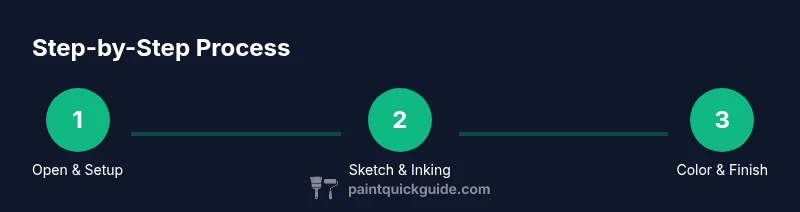
The ibis Paint interface places brushes and tools at your fingertips, with layers and masks accessible in the side panels. Start with a rough sketch on a dedicated sketch layer, then move to inking and color layers as you refine. The brush editor lets you customize pressure, opacity, and stroke smoothing; experiment with a few presets before settling on a favorite. Use the symmetry and perspective guides to accelerate accurate drawings. Familiarize yourself with shortcuts like undo/redo and quick color pick to keep momentum as you learn how to use ibis paint.
Color control and palettes for solid palettes
A strong color workflow makes a big difference in digital art. Use the color wheel to pick base hues, then save swatches to a palette for consistency. Try color harmony rules (complementary, analogous) to achieve pleasing color relationships without guesswork. The eyedropper tool helps you sample colors from your own artwork, ensuring cohesion between shadows, midtones, and highlights. As you progress, start building custom palettes for different projects to streamline your process and reinforce your color vocabulary.
Drawing techniques: sketch, lineart, shading, and texture
Begin with light sketch lines on a separate layer to keep options open. Once satisfied, reduce opacity or lock the sketch layer and apply clean linework on a new layer using a stable brush. For shading, build up color in soft passes rather than one heavy stroke, using layer blending modes to deepen shadows. Experiment with texture brushes to add material feel (cloth, metal, wood) without overcomplicating your base colors. This approach keeps your process flexible while you explore how to use ibis paint for expressive results.
Working with layers and masks for non-destructive edits
Layers are the backbone of a non-destructive workflow. Name layers clearly (Sketch, Inks, Base Color, Shadows), and group related layers when possible. Use masks to protect areas while applying color or texture, and invert masks when you need to refine edges. Leverage layer blending modes (Multiply for shading, Screen for highlights) to craft depth without repainting entire areas. A good habit is to save incremental versions (Step 1, Step 2) to compare approaches and avoid losing progress.
Exporting, sharing, and project management
When you’re ready to share, export as PNG for lossless images or JPG for smaller files. Choose a high resolution that preserves detail for prints or portfolios, and export with transparent backgrounds if needed. Use ibis Paint’s cloud sync to back up your work across devices, or save to your device library for easy posting to social platforms. Keeping a simple naming convention and metadata will make organizing multiple projects easier over time as you grow your ibis Paint skills.
Authority sources and further learning
For broader art theory and technique, consult reputable resources like Britannica’s color and drawing entries, Nature’s perspectives on digital media, and NIH resources on visual learning. These sources can help you deepen your understanding of color theory, composition, and the cognitive aspects of art creation, complementing your practical practice with ibis Paint. This combination of hands-on practice and credible references supports steady growth in 2026 and beyond.
Authority sources (continued)
- https://www.nih.gov
- https://www.nlm.nih.gov
- https://www.britannica.com/art/drawing
Tools & Materials
- Smart device (phone or tablet) with ibis Paint installed(iOS or Android; ensure the latest version is installed)
- Stylus (optional)(Helpful for precise line control and pressure sensitivity)
- Stable internet connection(Needed for asset downloads and cloud sync)
- Account login (Google/Apple/ibis account)(Required to save to cloud and sync between devices)
- Headphones or speakers(Useful for following audio tutorials)
Steps
Estimated time: 45-60 minutes
- 1
Open ibis Paint and create a new canvas
Launch the app, tap the plus icon, and start a new canvas. Choose a suitable size, landscape or portrait orientation, and set a clean background. This first step establishes your workspace for learning how to use ibis paint.
Tip: Tip: Start with 2000x2000 px at 300 dpi for flexible output; adjust later if needed. - 2
Set up your layers and basic structure
Create a Sketch layer for your initial lines and another layer for construction shapes. Name layers clearly and enable auto-sprite or snapping features if available. This prepares a non-destructive workflow for clean results.
Tip: Pro tip: Keep your rough sketch on a low opacity layer to easily see your linework beneath. - 3
Select brushes and customize settings
Browse the brush catalog and choose a basic pencil or pen for sketching, then a smoother brush for inking. Adjust brush size, opacity, and smoothing to fit your hand pressure and style. Save a personal brush preset for quick access.
Tip: Pro tip: Enable stabilization or smoothing to achieve cleaner lines if your hand is unsteady. - 4
Sketch the composition lightly
Use light, quick strokes to outline composition, keeping lines loose. Don’t worry about perfection; the goal is to map proportions and focal points before committing to ink.
Tip: Pro tip: Use symmetry or perspective guides to help with accurate layout from the start. - 5
Ink the final linework
On a new layer, trace over your strongest lines with a clean, consistent stroke. Increase line weight where you want emphasis and use a comfortable brush size to maintain readability.
Tip: Pro tip: Turn off sketch layer visibility to check how clean the ink lines look in isolation. - 6
Block in base colors on separate layers
Create a Base Color layer beneath lineart and add flat fills with the bucket or brush. Keep shadows and highlights on their own layers to adjust without repainting base colors.
Tip: Pro tip: Use a color palette with 4–6 core colors to maintain harmony and reduce decision fatigue. - 7
Add shading and lighting
Build shadow shapes on Multiply or Darken layers, starting with broad areas and refining with smaller shapes. Add highlight edges with a soft light or overlay layer to create depth.
Tip: Pro tip: Work from large shapes to small details; avoid hard edges unless intentional. - 8
Fine-tune colors and textures
Adjust color balance, saturation, and contrast to unify the piece. Add subtle textures with texture brushes or overlays to give surface character without overpowering the composition.
Tip: Pro tip: Use layer masks to apply texture only where needed. - 9
Review, save, and export
Save a project file to keep layers intact, then export a final image in PNG for quality or JPG for sharing. Choose export size that preserves detail for your intended platform.
Tip: Pro tip: Rename the file with project name and date to stay organized. - 10
Back up and share
Back up to cloud storage or your device, then share via social media or portfolios. Consider creating a short video or GIF showing your workflow for tutorials.
Tip: Pro tip: Regularly back up your projects to avoid data loss and track your progress over time.
Your Questions Answered
Is ibis Paint free?
ibis Paint offers a free version with in-app purchases for premium features. You can complete many tasks without paying, but a paid plan unlocks extra brushes, effects, and higher export options.
There is a free version with optional paid features. You can start drawing right away and upgrade later if you want more brushes and options.
Which brushes work best for beginners?
Beginners typically start with a basic pencil or pen brush for sketching, then a smooth ink brush for linework. Save these as presets and adjust smoothing to your preference.
Start with a pencil for sketching and a smooth ink brush for lines. Save these as presets to speed up your workflow.
Can I use ibis Paint on desktop?
ibis Paint is primarily designed for mobile devices. There is no official desktop version, but you can use emulation or cloud sync across mobile devices if you have access to a tablet or phone.
The app is meant for mobile, with cloud syncing to support cross-device work.
How do I export high-quality images?
Export options include PNG or JPG. Choose PNG for lossless quality and transparent backgrounds when needed, and pick a resolution that suits your final medium (screen or print).
Export as PNG for best quality, or JPG for smaller file sizes; pick a resolution that suits your platform.
How do I reset a brush to default settings?
Open the brush settings, locate the reset option, and apply it to restore factory defaults. Save this as a new preset if you want to keep your customized version.
Open brush settings and reset to default. Save as a preset if you like your tweaks.
Watch Video
Quick Summary
- Start with a simple setup and clear layers
- Master a few brushes and basic color control
- Use non-destructive workflows with masks and layers
- Export at appropriate resolutions for your needs
- Regular practice builds speed and confidence