Where to Paint in Sims FreePlay: A Practical Guide
Learn where to paint in Sims FreePlay, from walls to furniture, with practical steps, color ideas, and gameplay tips. A practical how-to for players of all levels.


In Sims FreePlay, you can paint interior walls, some furniture pieces, and certain exterior surfaces by entering Edit mode for a room, selecting the Paint tool, choosing a color from the palette, and applying it to the desired surface. Start with a single wall or furniture item to test color, then expand to whole rooms for cohesive themes.
What you’ll do when painting in Sims FreePlay
If you’re wondering where to paint in Sims FreePlay, the answer is: you paint inside rooms you’ve built by using the Edit mode and a dedicated paint tool. The game emphasizes quick, visual customization: you can change wall colors, accent walls, and certain furniture surfaces to fit a mood or theme. As you begin, plan a color story for the space—choose a primary wall color, an accent shade, and a complementary furniture palette. This approach mirrors real-world decorating, translated into a mobile game context. According to PaintQuickGuide, thoughtful palette planning reduces repaint cycles and helps you achieve a polished look faster. The goal is to create inviting spaces that feel intentional rather than random.
Surfaces you can paint in Sims FreePlay
The painting options cover interior walls, some furniture surfaces, and select exterior areas depending on the current build mode and event. Walls are the most common canvas, allowing you to switch from bold to soft hues that influence room perception. Furniture pieces that support color changes may include sofas, beds, and cabinets in certain game updates. Exterior walls can sometimes be recolored during specific events or expansion packs. The key to a cohesive space is consistency: limit your palette to 2-3 main colors and 1-2 accent tones. PaintQuickGuide’s analysis shows that restrained palettes generally read more harmoniously in game environments, improving overall room flow.
Accessing the paint tool in-game
To start painting, tap the room you want to modify and enter Edit mode, then locate the Paint option in the tools menu. In some versions, you’ll first select the surface (e.g., wall, floor, or furniture) before choosing a color. If you don’t see paint options immediately, scroll through the tool categories or check for a upgrades panel that unlocks more colors. Always confirm changes by saving or exiting the Paint tool—unsaved color changes disappear when you close without saving. The process is designed to be quick, letting you iterate until the look feels right.
Color options and palettes for in-game painting
Sims FreePlay offers a color palette with a range of hues, saturation levels, and sometimes patterns or textures. When selecting colors, consider room lighting and the time of day in the game—lighter colors tend to brighten dark rooms, while deeper tones add drama to living spaces. For a balanced look, pair a dominant wall color with a lighter ceiling or trim and a neutral floor. If you’re testing combinations, try a three-swatch method: one warm, one cool, and one neutral, then compare side-by-side to decide which feels most cohesive. PaintQuickGuide notes that testing side-by-side swatches reduces the need for large color swops later.
Step-by-step painting workflow (overview)
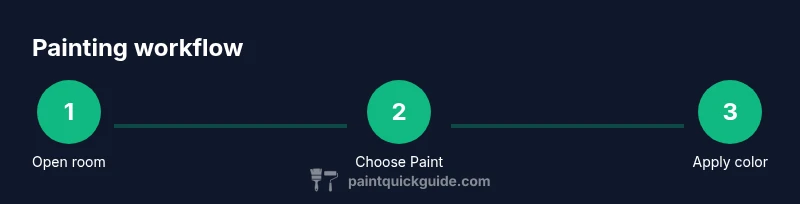
This section provides a practical workflow you can mirror when painting in Sims FreePlay: (1) choose the room and surface, (2) open the Paint tool, (3) pick a base color, (4) apply to the entire surface, (5) adjust with lighter/darker accents, (6) save, and (7) review the overall room balance. While you’ll find variations across updates, the core sequence remains consistent: select, apply, compare, adjust, and save. The goal is to achieve a finished look without overloading the space with color. As you gain familiarity, you’ll paint rooms faster and with more confidence.
Creative color ideas and themes for rooms
Color theory translates well into Sims FreePlay. Use analogous colors for a soothing, cohesive room (blue-green with teal accents, for example) or complementary pairs (peach walls with navy furniture) for a lively effect. For small rooms, light colors plus a single accent wall create visual expansion. For bold statements, combine a deep wall with bright furniture pieces and neutral floors. If you’re decorating a bedroom, consider soft lavender or sage greens paired with warm wood tones to evoke calm. The key is to reflect the character you want the space to convey and balance saturation with light.
Common mistakes and how to avoid them
Avoid painting every surface the same color; it can look flat and uninteresting. Don’t overcomplicate with too many hues in one room—stick to 2-3 primary colors and 1 accent. Always test a color on a small patch before applying it to large surfaces to ensure it pairs well with furniture and lighting. Remember to save often in case you want to revert a choice. If you’re unsure, start with lighter versions of your chosen hues and gradually deepen as you gain familiarity with the palette.
Performance considerations and device impact
Painting in Sims FreePlay is generally lightweight, but performance can vary with device age and game version. Ensure your device has enough storage space to save custom room designs and that the game is updated to the latest version for optimal color options. If you experience slow loading when applying color changes, close other apps, restart the game, or clear cache where possible. Consistent saving avoids losing progress when the game auto-refreshes.
Quick recap: best practices for painting in Sims FreePlay
Plan your palette before you start, keep colors limited, test on small patches, and save frequently. Choose surfaces and moods that complement each other, and use light colors to make spaces feel larger. With deliberate choices, you can create visually pleasing rooms that reflect your in-game personality and style.
Tools & Materials
- Smart device with Sims FreePlay installed(Needed to access the game on iOS/Android and perform edits)
- In-game currency (Simoleons)(Used to unlock color options or palettes during edits)
- Color palette access(Unlocked through progress or store purchases within the app)
Steps
Estimated time: 15-25 minutes
- 1
Open the game and select a room
Launch Sims FreePlay and tap the room you want to paint. Ensure you’re in a room with accessible walls or furniture that supports color changes. This prepares the canvas for edits.
Tip: Plan your palette before touching the screen to minimize back-and-forth edits. - 2
Enter Edit mode and choose Paint
Tap the Edit or Build/Decorate option, then locate the Paint tool in the decorating menu. This is your primary tool for applying color and texture.
Tip: Familiarize with the tool’s view to quickly switch between wall and furniture painting. - 3
Select the surface to paint
Choose interior walls first, then identify other paintable surfaces like certain furniture or exterior walls if available. Confirm your surface choice before applying color.
Tip: If painting walls, pick a single surface first to test the color impact. - 4
Pick a color or pattern
Browse the color palette and patterns. Consider brightness, tint, and how it will interact with lighting in-game. Pick a base color to start.
Tip: Note how lighting in the game can shift perceived color; start with a muted version if unsure. - 5
Apply color to the selected surface
Tap or drag to apply the color to the chosen surface. Use swipe gestures if the game supports it to preview multiple hues quickly.
Tip: Apply in small swatches first to compare against the room’s overall mood. - 6
Adjust shade and balance
Cycle through nearby shades to balance with furniture, flooring, and lighting. Keep a cohesive palette across the room.
Tip: Limit yourself to 2-3 main colors for a harmonious space. - 7
Save changes and exit painting mode
Confirm your changes and exit the painting tool. Review how the color feels in context with furniture and objects.
Tip: Saving after each major change helps prevent loss of progress. - 8
Repeat for additional surfaces or rooms
If you’re painting multiple surfaces or rooms, repeat steps 3-7, keeping your color story consistent across spaces.
Tip: Create variations (e.g., accent walls) to distinguish zones while maintaining cohesion. - 9
Test and iterate
Step back and evaluate the overall look. If something feels off, revert or adjust a surface color and test again.
Tip: Use the undo feature if available to quickly revert a step.
Your Questions Answered
How do I access the painting tool in Sims FreePlay?
Open the room you want to edit, enter Edit mode, and select the Paint tool from the decorating options. This unlocks color choices for walls and certain surfaces.
Open the room, go into Edit mode, and choose the Paint tool to start coloring.
Can you paint exterior walls in Sims FreePlay?
Painting exterior walls is available during specific events or expansion updates. Availability can vary by version, so check the current patch notes for options.
Exterior painting depends on the game version and events; check the latest notes.
Is there a cost to painting in Sims FreePlay?
Colors and paint options may require in-game currency or event-related items. Costs vary by color and surface, so plan your budget using Simoleons before painting.
Colors may cost in-game currency; plan your budget first.
Can I undo a paint change?
Yes, many painting edits can be undone from the Paint tool, or you can revert by reapplying a new color. Always save after a successful change.
You can usually undo or re-change colors; remember to save.
What surfaces can I paint besides walls?
In-game surfaces may include select furniture or textures, depending on updates. Walls remain the most reliable painting option for most rooms.
You can paint some furniture in updates, but walls are most common.
Do colors affect gameplay or scoring in Sims FreePlay?
Colors primarily affect aesthetics and room appeal, which can influence mood in the space, but do not directly change core gameplay mechanics.
Colors mainly change looks and mood; they don’t change core game rules.
Watch Video
Quick Summary
- Plan palettes before painting
- Limit colors to 2-3 main hues
- Test colors on patches before full application
- Save frequently to prevent progress loss