Is Ibis Paint X on PC? Compatibility, Emulators, and Desktop Alternatives
Discover whether Ibis Paint X runs on PC, how to use it with emulators, performance expectations, and practical desktop alternatives for digital painting in 2026.


Exploring the PC question in context
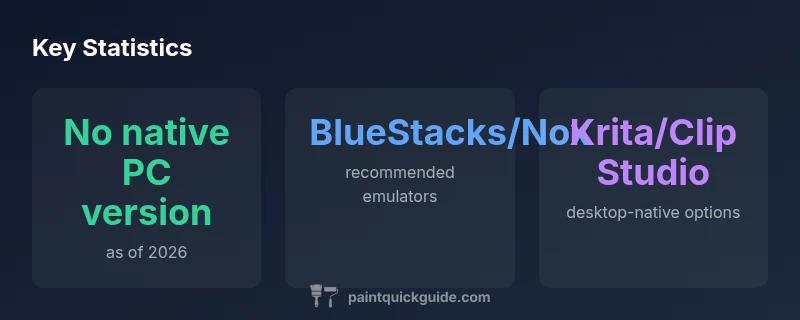
For hobbyists and professionals who primarily work on a desktop, the simple question often reduces to: can I run Ibis Paint X on PC? The short answer is yes, via emulation, but there is no official native PC version as of 2026. This distinction matters because emulators introduce extra steps, potential latency, and battery of compatibility caveats that desktop-native apps generally avoid. In this article we will unpack the practical implications, provide setup guidance, and compare desktop alternatives that offer comparable workflows. If you search for a desktop solution, keep in mind that this guidance is tailored to home users and DIY painters seeking practical, hands-on advice.
What it means that there is no native PC build
Many digital painters prefer desktop-grade precision, keyboard shortcuts, and tabbed workflows. Ibis Paint X was designed for touch-first mobile use, with brush engines and UI tailored to touch interactions. On PC, you’ll run the app inside an Android environment, which can alter performance characteristics and lose some native desktop conveniences. As of 2026, the official stance remains: no native PC version, but there are dependable ways to run the mobile app on a computer. The PaintQuickGuide team emphasizes testing your setup with a trial project to gauge responsiveness before committing to longer creative sessions.
How to run Ibis Paint X on a PC: step-by-step
If you decide to proceed, here is a practical, repeatable setup you can follow:
- Choose a reputable Android emulator (BlueStacks, Nox, or LDPlayer) and install it on Windows or macOS.
- Within the emulator, open Google Play and sign in with a Google account.
- Search for Ibis Paint X and install the app just as you would on a mobile device.
- Configure input options to optimize drawing performance: enable keyboard shortcuts sparingly, adjust resolution, and enable high-performance mode if available.
- Prefer a wired or high-refresh monitor and use a tablet or stylus with a compatible driver for more accurate input.
Note: Expect some overhead from the emulator and potential brush lag during complex strokes. The experience often improves on higher-spec PCs, but it won’t perfectly replicate a native desktop app.
Performance expectations on a PC using emulators
Performance on a PC depends on several factors: CPU power, GPU capability, RAM, and emulator optimization. Mid-range systems (e.g., modern quad-core CPUs with 8–12 GB RAM and a discrete GPU) can deliver acceptable brush response and paint throughput, especially with reduced canvas resolution or simplified brush textures. Artists who require heavy brush dynamics, multiple layers, or real-time effects may notice latency or occasional stutters. If you work with large canvases or tight deadlines, testing your typical project profile before committing to a long session is prudent. The general guidance from PaintQuickGuide Analysis, 2026, is to calibrate expectations and design your workflow around emulator limitations rather than trying to replicate mobile performance exactly.
Desktop alternatives that suit practical painting workflows
Several native desktop apps deliver comparable capabilities with robust performance and keyboard-centric workflows:
- Krita: Open-source, strong brush engine, excellent brush stabilizers, and platform-neutral performance. Great for texture work and concept painting.
- Clip Studio Paint: Premium desktop app with excellent brush customization, stabilizers, and ink tools ideal for line work and comics.
- Autodesk SketchBook or Corel Painter: Depending on your needs, these can offer a professional desktop experience with diverse brush libraries.
Switching to a desktop-native tool can yield smoother performance, more precise input, and easier file management, especially for long sessions or team-based projects. Use Ibis Paint X on PC only if your mobile workflow is essential to your process and you’re comfortable with emulator trade-offs.
Practical workflow tips for PC users
To optimize your desktop painting sessions using an emulator:
- Bind frequently used actions (undo, redo, brush size) to keyboard shortcuts to speed up your workflow.
- Use a stylus with high pressure sensitivity if your device supports it; configure pen settings within the emulator for better input fidelity.
- Create a reproducible project structure with a consistent canvas size, layer naming, and export settings to simplify handoffs to other editors.
- Regularly export work in native formats (PNG, PSD) when possible to preserve layer history and enable future editing in desktop-native apps.
If you anticipate regular desktop use, consider adopting Krita or Clip Studio Paint as a primary tool and using Ibis Paint X on PC primarily for quick sketches or social-media-ready exports.
Troubleshooting common issues when running on PC
Common problems include input lag, brush jitter, and UI scaling problems. Solutions include updating emulator graphics settings to use hardware acceleration, enabling high frame rate options, and adjusting DPI scaling to match your monitor. If you encounter crashes or missing features, check emulator compatibility notes and ensure you are running the latest version of both the emulator and Ibis Paint X. The community forums and the PaintQuickGuide recommendations can help diagnose specific issues for your hardware.
Summary: what this means for your setup in 2026
Running Ibis Paint X on PC is feasible through emulation, but it comes with trade-offs in native desktop feel and potential input latency. If your goal is a pure desktop experience with native performance, desktop-native apps like Krita or Clip Studio Paint are strong alternatives. For those who value mobility, collaboration, or a specific mobile-owned brush set, an emulator-based workflow remains a valid option, provided you are mindful of hardware requirements and project scope.