How to Go to Paint in Computer: Open, Use, and Master Painting Apps
A comprehensive, step-by-step guide to opening Paint on Windows, exploring alternatives on macOS/Linux, and building basic digital painting skills with practical tips and workflows.


If you’re looking for how to go to paint in computer, start with Windows’ built-in Paint for quick sketches and edits. This guide covers launching Paint, choosing the right alternatives on Mac or Linux, and a basic workflow you can build on. By the end, you’ll know when to use Paint vs. a more capable program and how to save your work.
Accessing Paint on Windows: how to go to paint in computer
If you’re wondering how to go to paint in computer, the simplest path is to use the built-in Windows app called Paint. It’s a lightweight, beginner-friendly tool ideal for quick sketches, edits, and basic photo touch-ups. This section guides you through locating the app, understanding its layout, and confirming when Paint is the right starting point for your project. Whether you’re touching up an image, adding annotations, or practicing basic strokes, Paint offers an accessible entry point for new digital painters.
To open Paint on Windows, click the Start button and type “Paint” in the search box. The search results typically display a Microsoft Paint icon; click it to launch. If your system doesn’t show Paint, you can enable it as an optional feature in your settings or download an official paint app from the Microsoft Store. Once opened, you’ll see a simple canvas, a row of tools across the top, and a color palette along the bottom. Use the pencil or brush tool to start drawing, adjust the brush size, and try the fill tool to understand color areas. Practice short strokes and save your work frequently to build confidence.
This approach aligns with PaintQuickGuide’s practical philosophy: start simple, master the basics, and grow your toolkit as your skills expand.
Alternatives for macOS and Linux: beyond MS Paint
Mac users don’t have MS Paint by default, but there are solid, free alternatives that keep the spirit of quick drawing and basic edits. Paintbrush offers a familiar, minimalist experience for macOS, while Krita and GIMP provide more advanced capabilities if you want layers and more brushes. On Linux, use programs like KolourPaint or Krita for Windows-like workflows. The key is to choose a tool whose interface you find intuitive and that supports the basics you need. Installations are straightforward: download from the official site or package manager, launch, and set your preferred brush and color palette. In all cases, start with a blank canvas, select a brush size, pick a color, and practice basic strokes to build confidence before tackling more complex tasks. This approach keeps your learning curve gentle while you explore the best fit for your style.
Quick-launch shortcuts and setup for a smooth start
A smooth start hinges on quick access and sensible defaults. Learn a few keyboard shortcuts that improve speed: Ctrl+Z for undo, Ctrl+S for save, and the spacebar to pan across a canvas in some tools. Configure your canvas settings—prefer a modest resolution for quick edits and a larger canvas for detailed work if your hardware allows. Create a dedicated color palette with a few favorite hues to minimize switching time. If you’re using a drawing tablet, enable pressure sensitivity in your device settings and in the app to gain natural, variable stroke width. Finally, consider enabling gridlines or ruler guides to help with alignment as you practice.
Basic painting workflow in a simple tool
A foundational workflow helps you move from idea to image with confidence. Start by creating a new canvas at a comfortable size, then pick a brush and color. Draw rough strokes to map shapes, then refine with smaller brushes and cleaner lines. In simple tools like Paint, you won’t have layers, so plan your steps to avoid overdraw. In more capable programs, you can add layers for line art, color fills, and shading. Save interim versions to compare progress and avoid losing early work. As you practice, experiment with different brushes, opacities, and stroke speeds to understand how each setting affects the final look. This hands-on approach builds muscle memory and translates into steadier freehand drawing over time.
Saving, exporting, and sharing your artwork
Saving is a critical habit for any painter. In most basic tools, you can save in PNG or JPEG formats; PNG preserves transparency where supported and is ideal for sharing online. When exporting, consider the balance between file size and image quality. Name your files clearly and organize them into folders by project or date. Sharing can be as simple as uploading to a photo site or sending via email. If you plan to print, check the resolution; higher DPI results in crisper prints. For collaborative projects, keeping a layered project file (where available) helps you revisit edits later. Consistent saving intervals and thoughtful export choices keep your work accessible and ready for feedback.
Troubleshooting common issues when launching Paint
If Paint won’t open, start with basic steps: reboot the computer, check for system updates, and ensure Paint is installed via the official app store. If the program opens but behaves erratically, try resetting the app or clearing temporary files. Performance issues often stem from running too many heavy apps at once or using an extremely large canvas on modest hardware. In those cases, scale back the canvas size, close other programs, and update graphics drivers. If you’ve installed a third-party app that conflicts with Paint, disable or uninstall it temporarily to identify the root cause. By isolating problems and applying simple fixes, you’ll regain a stable painting environment quickly.
Practice projects to build proficiency
To solidify your skills, work on small practice projects that use only a few tools at a time. Start with a simple still life sketch, then progress to basic shapes and shading. Create a quick postcard with a simple scene, focusing on color selection and balance. Try annotating a photo with text and arrows to learn composition and emphasis. As you gain comfort, explore a basic color-matching exercise: choose a reference image and attempt to reproduce its palette with your chosen tool. Regular, short sessions beat long, infrequent breakthroughs. Practice builds fluency with the interface and keeps you moving toward more ambitious digital painting goals.
Tools & Materials
- Computer or tablet with required OS(Windows for Paint; macOS/Linux for alternatives)
- Paint app or suitable alternative(MS Paint on Windows; Paintbrush, Krita, or GIMP for other OS)
- Mouse or drawing tablet(Tablet with stylus recommended for precision)
- Internet connection (optional)(For downloading apps or updates)
- Reference images or photo to practice from(Useful but not required)
Steps
Estimated time: 30-60 minutes
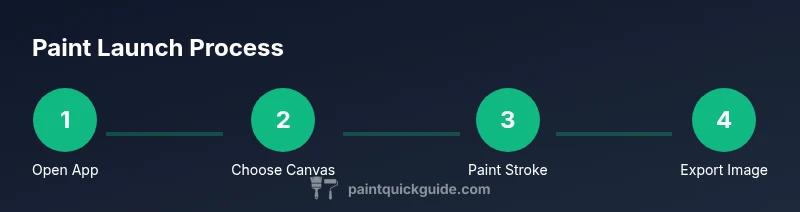
- 1
Identify your painting tool
Decide whether you’ll use Windows Paint or another program appropriate to your OS. This step sets expectations for features like layers, brushes, and export formats.
Tip: If you’re new, start with Paint to learn basics before moving to feature-rich apps. - 2
Open the chosen app
Launch the program from the Start menu (Windows) or from your Applications folder. Verify that the interface loads correctly and that the brush tools are visible.
Tip: Create a desktop shortcut for quick access. - 3
Set up a canvas
Create a new canvas at a comfortable size, then choose a basic brush and color. If your tool supports it, enable a grid or guides to help alignment.
Tip: Start with a small canvas to practice before moving to larger sizes. - 4
Make your first strokes
Draw simple shapes or lines to test brush dynamics. Adjust brush size and hardness to see how it changes line quality.
Tip: Use light strokes to sketch; you can go darker on subsequent layers or passes. - 5
Save your work
Save your project in the app’s native format if available, then export a copy as PNG for sharing.
Tip: Save frequently and name files clearly by project and date. - 6
Explore an upgrade
If you outgrow the basics, try a free alternative like Paint.NET or Krita to access layers and more brushes.
Tip: Move gradually; learn one new feature per session to avoid overwhelm.
Your Questions Answered
Is MS Paint still available in Windows 11?
Yes, MS Paint remains available on Windows 11, and you can access it from the Start menu or Microsoft Store. For more advanced needs, try Paint.NET or Krita as capable alternatives.
MS Paint is still available in Windows 11. You can find it from Start or the Microsoft Store, or switch to a more advanced free app if you need layers.
What’s the difference between Paint and Paint.NET?
Paint is a basic raster editor suitable for quick sketches. Paint.NET adds layers, multiple effects, and more advanced editing features, making it better for more complex projects.
Paint is simple, good for quick sketches. Paint.NET offers layers and more tools for more complex work.
Can I use Paint on Mac without Windows?
Mac users can’t run Windows Paint natively. They can use macOS alternatives like Paintbrush or Krita, or run Windows via virtualization to access MS Paint.
You can't run MS Paint on Mac directly, but you can use alternatives like Paintbrush or Krita, or run Windows in a VM.
Are there good free alternatives for painting on a budget?
Yes. Krita, Paint.NET (Windows), and GIMP are popular free options with varying levels of complexity. Choose based on whether you want simple tools or more advanced features.
Yes. Krita, Paint.NET, and GIMP are great free options. Pick based on how advanced you want your tools to be.
What hardware do I need to start painting on a computer?
A computer or tablet, a pointing device like a mouse or stylus, and optional drawing tablet for better precision. A reasonably recent system helps with smoother performance.
You need a computer, a mouse or stylus, and optionally a drawing tablet for better precision.
Can I export to vector or other formats from basic Paint?
MS Paint supports raster formats like PNG and JPEG. For vector work, you’ll need a different tool or export from a feature-rich editor.
MS Paint exports to common raster formats. For vector output, try a more advanced editor.
Watch Video
Quick Summary
- Open Paint or a suitable alternative quickly whenever you want to sketch.
- Start with basic tools and a small canvas to build confidence.
- Save often and export in a share-friendly format like PNG.
- Consider upgrading to a multi-feature editor as skills grow.
- Practice regularly to translate learning into smoother strokes.