Paint App Guide: Choose, Use, and Optimize Your Painting Projects
Learn how to choose and use a paint app for home and auto projects. This practical, educational guide covers features, costs, workflows, and best practices to help you plan, visualize, and execute painting tasks efficiently.


A paint app helps you plan color schemes, simulate finishes, and document your project from start to finish. You will learn how to evaluate features, estimate costs, and implement a workflow that saves time and reduces mistakes for both home painting and auto refinishing.
Introduction to Paint Apps for DIY Projects
A paint app (often called a color planning or color-matching tool) helps you plan color schemes, simulate finishes, organize materials, and track timelines. For homeowners, DIY enthusiasts, and auto refinishing hobbyists, it translates ideas into printable palettes and side-by-side comparisons. According to PaintQuickGuide, the right paint app can save time, reduce waste, and improve communication with clients or family members. In this guide you’ll learn how to evaluate features, estimate costs, and build a practical workflow that works on both walls and vehicles. The term 'paint app' covers mobile and desktop tools that help you visualize color, apply finishes virtually, and generate reports that simplify ordering and budgeting. Throughout the process, you’ll see how to adapt the platform to your project scale and lighting conditions, from a single accent wall to a full auto refinishing project. By the end, you’ll know how to select an app that fits your skill level and budget, while keeping color accuracy at the forefront of your planning.
For many homeowners and hobbyists, a paint app is more than a digital palette; it’s a central planning hub that links color ideas to materials, timelines, and costs. A thoughtful setup turns guesswork into data-backed decisions and helps you communicate plans clearly with family members or clients. As you read, consider how you’ll use the app across different projects—interior walls, exterior trim, or automotive finishes—and how you’ll keep your color naming consistent across devices and teams.
Tools & Materials
- Smartphone, tablet, or computer(A supported device with internet access and up-to-date OS.)
- Paint app (download or subscription)(Choose an app with color library, budgeting, and export options.)
- Color references (color swatches or fan deck)(Helpful for real-world color matching and verification.)
- Measuring tools (tape measure, ruler)(Useful for accurate area and surface measurements.)
- Notebook or digital notes(Capture ideas, constraints, and decisions for quick reference.)
Steps
Estimated time: 60-90 minutes
- 1
Install and Open Your Paint App
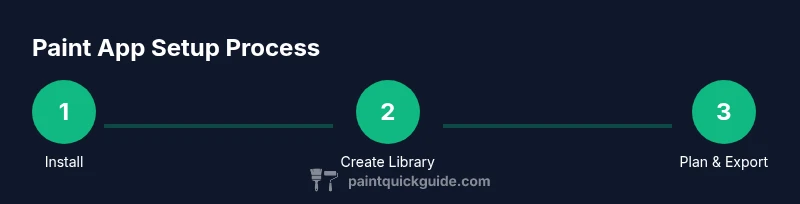
Download the chosen paint app from your device’s store, install it, and launch the program. If prompted, create an account or sign in, then set your default language, units (inches/cm), and preferred currency for budgeting. This initial setup ensures all projects export consistently across devices.
Tip: Choose cloud sync if available to back up palettes and project data automatically. - 2
Create Your Color Library
Add your base colors and import any existing swatches. Organize colors by project (e.g., Kitchen, Living Room, Car), and tag shades by warmth (warm, neutral, cool) to speed future selections. Save multiple palettes per project for quick comparisons.
Tip: Name palettes clearly (e.g., “Living Room Trim - 60% Lightness”). - 3
Set Up Projects and Budgets
Create a project for each space or vehicle, then attach a rough budget and timeline. Include coats, primers, sealers, and finishes. Use the budgeting tool to estimate total costs and flag potential overages before ordering supplies.
Tip: Link your budget to tasks so you can track progress against planned spend. - 4
Build Your Materials List
Generate a materials list from your palettes and finish choices. Include quantities, primer types, surface prep products, and tools. Export the list for supplier quotes or share with teammates for purchasing.
Tip: Add buffer quantities (e.g., 10–15% extra) to account for mistakes or future touch-ups. - 5
Plan Color Schemes with Finishes
Experiment with color combinations and finish levels (matte, satin, gloss). Use the app’s visualization tools to see how lighting affects color in different rooms or on a vehicle panel. Save at least two viable schemes per project.
Tip: Test schemes under representative lighting conditions in the app to avoid surprises in real life. - 6
Estimate Coverage and Timelines
Enter room dimensions or surface areas to estimate paint coverage and coats needed. The app should calculate coats, drying times, and total project duration. Adjust for real-world factors like ventilation and humidity.
Tip: Add a realistic buffer for weather, drying, and re-coats to prevent delays. - 7
Review, Share, and Export
Review your final palettes, budgets, and schedules. Share with family, teammates, or clients via exportable PDFs or links. Archive completed projects for easy reference in future jobs.
Tip: Use export formats (PDF/CSV) for client presentations or supplier quotes.
Your Questions Answered
What is a paint app and how can it help my painting projects?
A paint app is a digital tool that helps plan color schemes, simulate finishes, organize materials, and track timelines. It translates ideas into palettes, budgets, and schedules, reducing errors and waste.
A paint app is a digital planning tool for color and materials planning, which helps you plan, budget, and track painting projects.
Do I need to pay for a paint app or are free versions enough?
Free versions cover basics, while paid options unlock advanced color libraries, budgeting, and collaboration features. Assess your project needs and choose a plan that fits your workflow.
There are free and paid options; upgrade if you need more color libraries, budgeting, or sharing features.
Can I use a paint app for car refinishing projects?
Yes, many paint apps support automotive palettes and finish visualization. Ensure the app can handle automotive paints, clear coats, and dimension accuracy for panels.
Yes, you can use it for car refinishing, but confirm automotive material support.
Which features should I prioritize in a paint app?
Look for a robust color library, accurate visualization, project organization, budgeting, and easy export/sharing options. Cross-device sync improves teamwork.
Prioritize color library, visualization, budgeting, and sharing in a paint app.
Is syncing across devices reliable?
Most apps use cloud syncing with automatic backups. Verify offline access and occasional manual backups if you work in areas with poor internet.
Cloud sync is common and reliable, but have offline access as a fallback.
How do I start using a paint app if I’m not tech-savvy?
Choose an intuitive app with guided templates. Start with a simple project, then watch brief tutorials to build confidence.
Start with an easy template and watch quick tutorials to learn the basics.
Watch Video
Quick Summary
- Define project scope before selecting a paint app
- Prioritize color library, budgeting, and sharing features
- Test schemes under proper lighting in-app
- Export reports to streamline ordering and communication
- Back up data regularly to protect palettes and plans